GoHighLevel has a native WooCommerce integration, and for a simple store it does the job. It pulls your customers, orders and transactions across and gives you two workflow triggers, Order Submitted and Payment Received. Where it falls short, GoHighLevel's own documentation says so: guest-checkout buyers are created once and never updated, a refunded order arrives as Completed, and the abandoned-checkout trigger lists Shopify as the only outside store it supports today.
If most of your buyers check out as guests, or a refund has to stop a follow-up, you need a bridge: a small plugin on the store that sends each order to GoHighLevel's API itself, with your own rules for what gets written. We've written two for client stores. This guide covers what the native sync does, how to test it in an afternoon, and the rules our bridges follow.
What does GoHighLevel's WooCommerce integration sync?
You connect it inside the store's sub-account (the workspace GoHighLevel keeps for each business), under Settings > Integration > WooCommerce, by entering the store's address without a trailing slash and approving the connection. Then you choose what to import once and what to keep in sync:
- Import: contacts, orders, transactions, products and collections.
- Keep syncing: the same five, plus the Order Submitted and Payment Received triggers.
GoHighLevel's main setup article for this integration now sits behind a login, so we quote its public changelog post from October 2024 and its product import article.
Both describe a sync that runs one way: you choose what to "continuously sync from WooCommerce to GHL," and WooCommerce stays "the source of truth for product information." Neither explains how an edit made in GoHighLevel would reach the store, so don't count on it.
The fine print is worth reading before you rely on it:
- Registered customers come across only if their WordPress role is customer or subscriber.
- Only simple and variable products import. Products priced at $0 or with no variants are skipped, and deleting a product or category in WooCommerce doesn't delete it in GoHighLevel.
- An order creates a contact for its buyer even when contact sync is switched off.
- To pull data again, the notes say to disconnect and reconnect the integration.
Where the native sync falls short
Guest buyers are frozen at their first order
WooCommerce lets shoppers check out without an account, and a guest order isn't tied to any WordPress user. GoHighLevel's notes are blunt about what happens next: "Guest checkout customers will be created as contacts, but no updates or future syncs will occur for these guest accounts."
So a guest's contact is a snapshot. If they come back with a new phone number or a new address, the integration doesn't carry it across. GoHighLevel doesn't say what happens to a guest's second order, so test that before you build a repeat-buyer workflow on it. On a store where most people skip the account, this is the gap that matters most.
A refund arrives as Completed
The integration folds WooCommerce's order statuses into three of its own:
- Pending paymentPlaced, not paid yetbecomes Pending
- On holdWaiting for payment to be confirmedbecomes Pending
- ProcessingPaid, waiting to shipbecomes Pending
Paid, but it reads as Pending until someone marks it Completed.
- CompletedFulfilled and completebecomes Completed
- RefundedThe full value was refundedbecomes Completed
The money went back, and the CRM still says Completed.
- CancelledCancelled by the store or the customerbecomes Cancelled
- FailedPayment failed or was declinedbecomes Cancelled
- Partly refundedNot a status. The order keeps the one it had.becomes No change
Nothing in the status mapping moves, so the order's status in the CRM stays as it was.
Three of those rows change what your automations do. A refunded order lands as Completed, so anything you hang on Completed (a review request, a reorder reminder) treats a refunded customer as a happy one. A partial refund doesn't move the status at all: WooCommerce only moves an order to Refunded when the full value is refunded, so the status mapping has nothing to pass on.
Processing catches people the other way. It's WooCommerce's word for paid and waiting to ship, and it lands as Pending. For anything that should happen when the money arrives, start from the Payment Received trigger and let the status follow fulfillment.
There is no WooCommerce feed for abandoned checkouts
GoHighLevel's Abandoned Checkout trigger works for its own stores and for outside ones. Set the order source to External, though, and the help article (updated 30 September 2026) says to "choose Shopify today, with more platforms coming soon." Its automatic recovery email covers only checkouts run through GoHighLevel's own Payments.
For a WooCommerce store, then, something on the store has to catch the abandoned cart and send it across. A plugin can do the catching: WP Fusion's abandoned cart add-on, which needs one of its paid licenses, adds the shopper to the CRM as a contact once they type a name and email at checkout, even if they never finish. When a client store needed cart recovery, we ran it in the store's email platform, which already sees the cart, and kept the CRM out of it.
One WooCommerce account per agency
The integration notes say "an agency can only be linked to one WooCommerce account," and a store already connected to another agency can't connect to yours. Sub-accounts inside the same agency can connect to the same domain. If you run several client stores from one agency, ask GoHighLevel support how that applies to you before you promise anyone a sync.
How to test the native sync in an afternoon
Before you decide anything, run these five tests with your own email and phone, and refund any test payments afterwards. If you'd rather test on a staging copy (a private clone of the store), connect it to a spare sub-account, and check the one-account rule above first. Each test takes a few minutes and answers a question the documentation leaves open.
Check out as a guest, then again with the same email and a different phone number. Open the contact in GoHighLevel and see whether the second order and the new number made it.
Refund a test order in full from WooCommerce. Check its status in GoHighLevel and which of your workflows fired.
Refund one line of an order. Check whether anything changed in GoHighLevel (the order's status, its transactions), then decide whether your reports can live with what you see.
Pay for an order and leave it in Processing. Note what GoHighLevel shows, and which of your workflows believe it's paid.
Type an email at checkout and leave. Wait past your abandonment window. If nothing arrives from GoHighLevel, recovery has to come from somewhere else.
Tap a box as you go. Checks reset when you leave this page.
When is the native integration enough?
Use it as it is when most buyers have accounts, refunds don't need to change what customers receive, and you want a clean contact list with a thank-you workflow. Plenty of stores fit that.
Look further when any of these is true:
- Most orders are guest checkouts, and you need the contact to stay current.
- Refunds, cancellations or failed payments must stop a workflow or move a card in a pipeline (GoHighLevel calls these opportunities).
- You want order facts on the contact: first and last order dates, paid-order count, total spent.
- Cart recovery has to live in the CRM.
Can you connect WooCommerce to GoHighLevel without Zapier?
Yes. Besides the native integration there are two routes, and neither needs Zapier.
WooCommerce webhooks into a workflow. WooCommerce can post every new order to a web address, and GoHighLevel's Inbound Webhook trigger gives a workflow its own address to receive it. You map the fields inside the workflow. GoHighLevel lists this as a premium trigger, and each sub-account gets 100 free premium executions before execution costs can apply. The catch sits on the WooCommerce side: it disables a webhook "after more than five consecutive delivery failures," so a bad afternoon at the receiving end quietly switches the feed off until someone notices.
A plugin on the store that calls GoHighLevel's API. There are free ones in the WordPress.org plugin directory, or you can write your own. Before you install one, find out what it does with guest buyers, refunds and existing tags.
We moved one client store from a Zapier chain to a plugin of our own. The chain had been sending only part of each order: the last-order date had gone stale, the paid-order count was never filled in, and campaign values arrived as tags, one new tag per campaign. The plugin writes first and last order dates, paid-order count, total spent, item counts and country to the contact, and puts the UTM values (the source and campaign labels on your ad links) from WooCommerce's own order attribution into custom fields.
The bridge we build when native isn't enough
It's a small WordPress plugin that runs on the store and talks to GoHighLevel's API with a Private Integration token, which GoHighLevel lets you limit to the scopes (permissions) the job needs. We cover how these tokens and their scopes work, and the API's other traps, in our guide to connecting GoHighLevel to Claude. The rules below come from both of our builds.
- 1Checkout
The customer pays and sees the thank-you page, exactly as they would with no CRM at all.
The customer is done here. Nothing below this line can slow or fail their checkout. - 2Queue a job
A background job is queued with the order ID and nothing else.
- 3Reload what is true now
The job reads the order fresh, plus the customer's latest order, so a retry never sends a stale copy.
- 4Find the person
Search the CRM by email and by phone. If both find the same person, or only one finds anyone, update that contact. If neither does, create one. If they find two different people, stop and log it for a human.
- 5Write
Update the contact without tags, add tags separately, and move the customer's one card to their latest order.
- 6Stamp and log
Write the CRM's IDs onto the order, so a repeat of the same event can't create a second contact or card, and log the result. A failure retries on a widening schedule, then stops and leaves its error in the log.
Keep the CRM out of checkout
The customer's checkout never waits on GoHighLevel. When an order is paid, the plugin queues a background job through Action Scheduler, the job queue that ships with WooCommerce, and the thank-you page loads as fast as it always did. If GoHighLevel is slow or down, the customer never finds out. It's the same rule we use for the forms on this site: store first, notify second.
Three habits make the queue safe:
- The job carries only the order ID. The worker reloads the order when it runs, so a retry sends what's true now, never a copy from three hours ago.
- The order gets stamped. Once the CRM's contact and card IDs are written on the order, a repeat of the same event can't create a second contact or card; later events, like a refund, update the card that's already there. Before it creates a card for the first time, the worker also looks for one it may already have made, using the fixed key it gives every card, so a request that went through but timed out doesn't leave a duplicate.
- Failures retry on a widening schedule: 1 minute, 5 minutes, 30 minutes, then 2 hours. After the fifth failed attempt it stops and leaves the error in a log inside the WordPress admin. Action Scheduler's own screen, under Tools > Scheduled Actions, lists every pending and failed job too.
The contact upsert replaces every tag
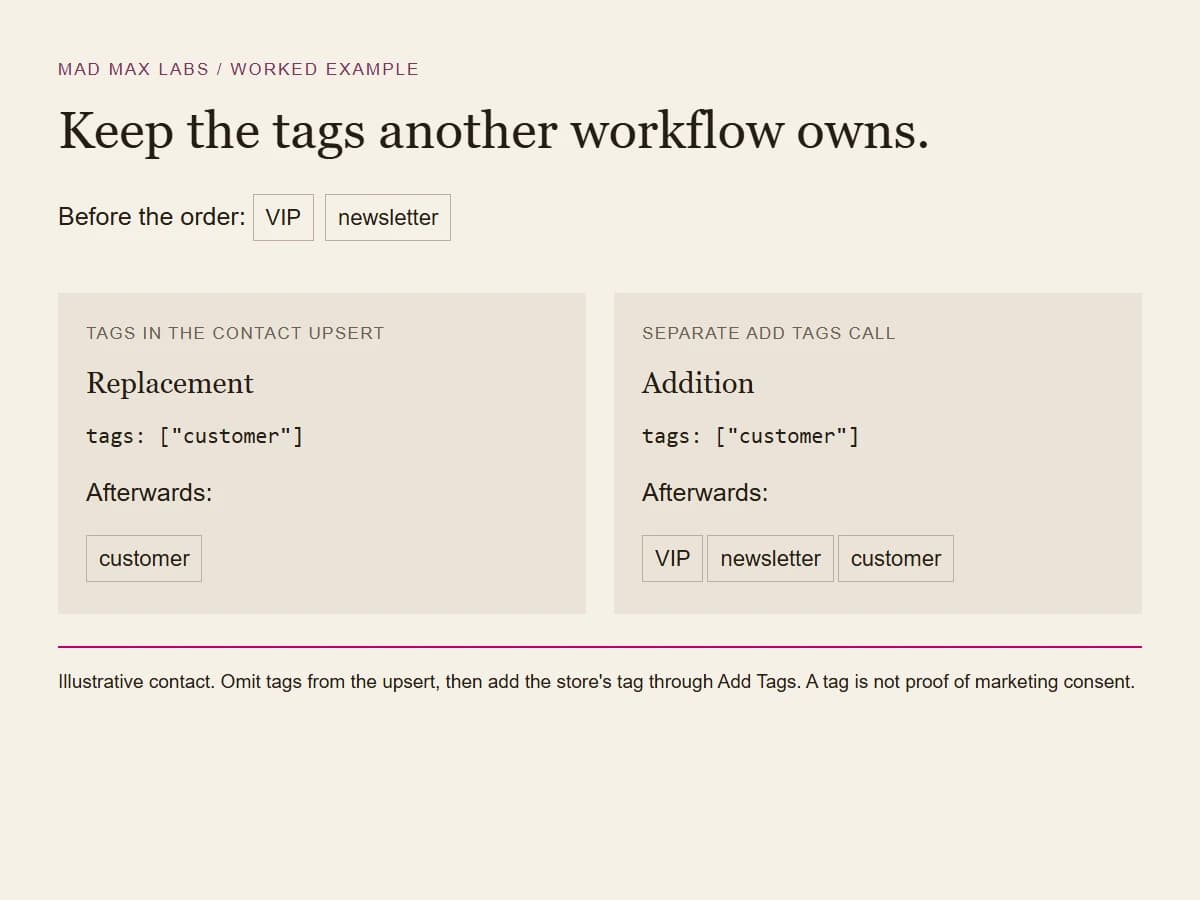
GoHighLevel's upsert endpoint creates or updates a contact in one call, which is what a store wants. Its tags field comes with a warning in the docs: "This field will overwrite all current tags associated with the contact." Send your order tags there and you wipe every tag a person or a workflow put on that contact, do-not-disturb and subscription tags included.
The bridge leaves tags out of the upsert and adds its own through the separate Add Tags endpoint, which the upsert docs themselves point to. It also leaves the contact's original source alone, because that field says how the person first found the business. The store's name goes in a custom field instead.
Take a contact already tagged VIP and newsletter. Writing customer into the upsert's tags field leaves only customer. Adding it through Add Tags leaves all three. The tag names below are invented; the replacement behaviour is the API behaviour we had to account for. A newsletter tag alone is never evidence that someone consented to a new campaign.
Match on email and on phone, and stop when they disagree
Each GoHighLevel sub-account has a deduplication setting that decides how a new record finds an existing contact: by email or by phone first, with an optional second field. The sub-account we worked in matched on phone first. The upsert docs spell out what happens when the email belongs to one contact and the phone to another: the API "will update the contact that matches the first field in the configured sequence, and ignore the second field."
As far as the API is concerned that call succeeded, so an order can land on the wrong person and nobody hears about it. Before every write, the bridge runs both searches itself:
| Email search finds | Phone search finds | The bridge |
|---|---|---|
| Contact A | Contact A | Updates contact A by its ID |
| Contact A | Nobody | Updates contact A by its ID |
| Nobody | Contact A | Updates contact A by its ID |
| Nobody | Nobody | Creates the contact through the upsert |
| Contact A | Contact B | Stops before writing and logs it for a person |
| More than one contact | Anything | Stops before writing and logs it for a person |
A US ten-digit number and the same number with a leading 1 count as one phone, so the formatting of a checkout field can't split a customer in two.
One card per customer, showing the latest order
Whether a contact can hold more than one card in the same pipeline is a sub-account setting, Allow Multiple Opportunities per Contact. With it off, each customer has one card in that pipeline however many times they order, and the bridge has to work that way.
Events don't arrive in a tidy order. A refund comes through days after the next purchase, or a retry finally succeeds hours late. If the bridge writes whichever order the event was about, the card can slide backwards:
- MondayThe customer places order A.
- ThursdayThey place order B. The card moves to order B.
- FridayYou refund order A, and the refund's job reaches the CRM.
Someone who bought yesterday now looks like a return, and any workflow on that stage fires on them.
The card stays on what is true now. The refund stays on order A in WooCommerce, with the money.
The fix is to make every job, whatever set it off, reload the customer's latest order and write that onto the card. If you'd rather have a card per order (an order desk, where each parcel moves through its own stages), turn the setting on and build a separate pipeline for it. We've run both. Pick one per pipeline and write the choice down where the next person will find it.
Here is a small fixture you can use to check that rule. Order A is paid for $80 on Monday. Order B is paid for $120 on Thursday. On Friday, A is fully refunded. The customer now has one paid order and $120 net paid, and the latest-order fields still describe B. Refunding A must not replace those fields with A's older details.
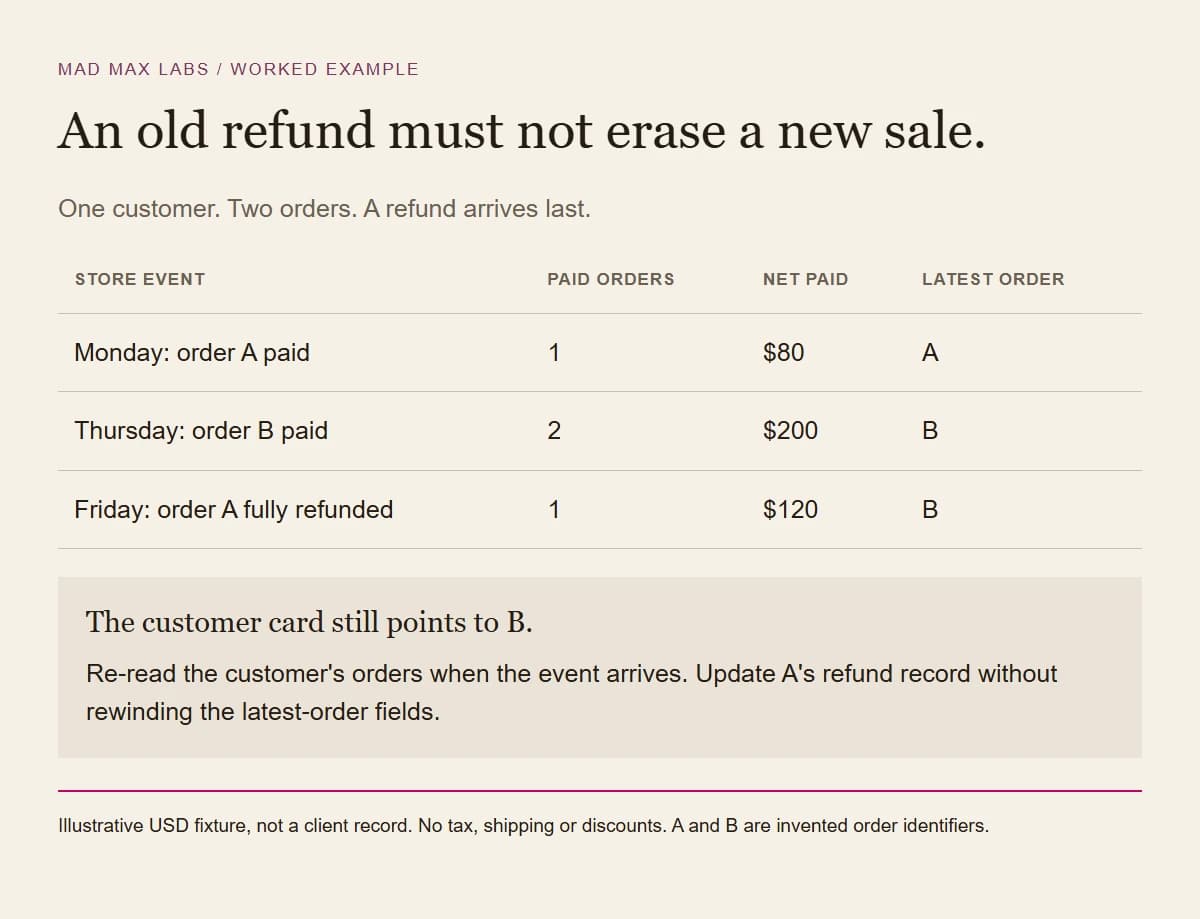
Open the example data and calculated results. This fixture uses full refunds only. A store's partial refunds, tax, shipping and multiple currencies need their own cases before a bridge goes live.
One more rule from the same work: if a GoHighLevel workflow already moves cards in a pipeline, the bridge stays out of that pipeline, so each pipeline has one writer.
Import history into a new pipeline
A backfill of old orders can wake up every workflow listening on your existing pipeline and send customers who bought months ago a message meant for this week's buyers. We import history into a brand-new pipeline that no workflow is attached to, and confirm in the workflow list that nothing listens on it.
Customer messages start in the store
Our rule: customer notifications originate in the store, and the CRM gets a copy of what happened. The store knows first when an order is paid, refunded or shipped, so it decides what goes out and when. GoHighLevel can still deliver the text, but the decision doesn't live in a workflow that might fire twice.
Two details follow from that:
- Texts wait for polite hours. We hold texts to a window that's polite in every mainland US time zone: 8am to 6pm Pacific, which is 11am to 9pm Eastern. A text due outside it waits for the next 8am Pacific. The federal rule for telephone solicitations is nothing before 8am or after 9pm at the recipient's location (47 CFR 64.1200(c)(1)), and our window sits inside it.
- One sender per message, with an off switch. If the plugin sends the welcome text and someone later builds a GoHighLevel workflow for the same text, the customer gets both. The plugin's off switch gets flipped before any workflow takes over that message. Test orders and orders without a phone number are skipped.
Switch over with a dry run
We shipped the Zapier replacement in dry-run mode first and ran it on one past order. It logged every request it would have sent, without sending any.
Then one test wrote to the real CRM with a made-up contact: an address on a domain reserved for testing, no phone, and do-not-disturb on. The test created the contact, added two tags in separate calls and checked that both survived, made a card and updated it, then deleted both and confirmed they were gone. The old webhooks went off after that.
When to skip the bridge
If the five tests come back fine, keep the native integration and spend the money elsewhere.
If they don't, a bridge like this is a fixed-price job. We sell it as an automation build, and when the store also needs a feature no extension covers, as a WordPress plugin. The rest of how we approach automation, including what we won't sell you, is on the automation page.