You can design a Klaviyo email with AI in two ways: use Klaviyo's own tools (the AI in its editor, its Composer agent, or templates built in a chat with Claude or ChatGPT), or have a model like Claude write the HTML for you. We do the second. Claude writes the HTML and runs the checks, an image model paints the scene around a real product photo, and every word stays live text.
The checking is where most of the work goes. Two of the worst failures we have found in client accounts looked healthy inside Klaviyo, and one of them stopped an email for a month.
We have built and run Klaviyo for two clients, a small US online store and a family-run business that sells to other businesses. Everything here comes from that work, done with Claude Code, Klaviyo's connector for Claude (its MCP server, the plug-in that lets an AI assistant work inside your Klaviyo account), and Higgsfield, the image tool we used for these emails. No client is named, and the copy in the figures is made up.
Which AI tools can design a Klaviyo email?
As of October 2026 we count four routes: three of Klaviyo's own, and the one we use, where Claude writes the HTML.
| Route | What it makes | Who can use it | Watch for |
|---|---|---|---|
| Klaviyo's AI in the editor | Sections in the drag-and-drop editor from a short description | Paid Klaviyo plans | Klaviyo says the final content is still on you |
| Composer, Klaviyo's agent | Campaigns and flows drafted from a prompt | A free Composer plan, then paid Composer plans | Work is metered in credits |
| Klaviyo's MCP server, drag-and-drop tools | Native drag-and-drop templates built in a chat with Claude or ChatGPT | Enterprise and Commercial accounts | Ask Klaviyo which tier your account is in |
| Claude writes the HTML (ours) | A hand-coded template, uploaded through the connector or the API | Any account; the connector needs an Owner, Admin or Manager role | Your team edits code unless you add editable regions |
Sources: Klaviyo's AI features page, its Composer page and plan article, its post on the drag-and-drop tools, and its MCP connection guide, all linked below.
On a paid plan the first route is already in your editor: Klaviyo says its AI features are included in every paid plan, and its walkthrough of the section generator says the same. Composer drafts campaigns and flows on its own free and paid plans. The drag-and-drop tools in the MCP server are, in Klaviyo's words, "available now for Enterprise, Commercial, and internal Klaviyo users", so ask before you plan around them.
We hand-code because these emails have to hold up in desktop Outlook as well as Gmail and Apple Mail, and because we want to read every line before it ships. Klaviyo's blog has a consultant's version of this route, where Claude Design draws the email and Claude Code pushes it into Klaviyo.
The cost is editing. A code template doesn't open in the drag-and-drop editor, so if the team will touch it every week, plan for a hybrid template with editable regions, or have Klaviyo convert it into a drag-and-drop template on a paid plan. Klaviyo says the conversion uses AI to recreate the design, so read the result before it goes out.
How do you hand-code a Klaviyo email template?
Claude writes each email as one HTML file, to rules that would look dated on a website. Email clients, Outlook above all, still need them:
- 600 px wide, laid out with tables, with styles written inline on each element; a short style block in the head carries only the font import, client resets and the phone layout.
- A web font with a plain fallback behind it (Georgia or Arial), for the clients that refuse to load fonts.
- Buttons made from a table cell with a link inside, never an image.
- Every word as live text. No headline, price or instruction inside a picture.
- Klaviyo's own tags for the legal lines:
{% unsubscribe %}, because Klaviyo requires an unsubscribe link on campaigns, and{{ organization.full_address }}, which prints the postal address from your account settings.
The button is the piece worth copying:
<table role="presentation" cellpadding="0" cellspacing="0" border="0">
  <tr>
    <td bgcolor="#222222" style="background-color:#222222; border-radius:5px;">
      <a href="https://example.com/shop"
         style="display:inline-block; padding:14px 30px; font-family:Helvetica, Arial, sans-serif;
                font-size:15px; color:#ffffff; text-decoration:none;">Shop the restock</a>
    </td>
  </tr>
</table>
The colour sits on the cell and the padding sits on the link, so in most inboxes the whole block is clickable and nothing waits for an image to load. Desktop Outlook on Windows only honours padding on table cells and draws no rounded corners, so there the button is a tighter coloured box with square corners. It still reads and still clicks.
Before anything goes near Klaviyo, Claude screenshots the file in a headless browser (a browser run from a script, with no window) at 680 px and 390 px wide, and we read both. It won't show you Outlook, but it catches a broken layout while a fix still costs a minute.
Keep the file small, too. Past a certain size Gmail cuts the email off behind a "View entire message" link, and Klaviyo notes the open-tracking pixel gets cut with it. Klaviyo puts that point at about 102 KB on desktop and lower on some phones, and image files don't count toward it, only the code. One of ours came in at 9.7 KB.
- LogoAs designedImages blockedBrand nameImage on a coloured table cell
The band is a background colour in the HTML, so it survives. Only the mark inside it is a picture, and its alt text names the brand.
- HeadlineAs designed
Back in stock this week
Images blockedBack in stock this week
Live text, written by ClaudeReal text in the HTML. Never baked into a picture, so it shows with images off and a screen reader can read it.
- HeroAs designedgenerated scenerealproductImages blockedAlt text: The new mug on a sunlit kitchen counterScene from the image model, product from a real photo
The main picture. JPEG at 1,200 px wide for a 600 px slot, about 120 KB, with its width set in the HTML too. It decorates; it never carries an instruction.
- BodyAs designedImages blockedLive text
Everything the reader needs to act is here, in words. If the message only makes sense with the picture, rewrite the copy.
- ButtonAs designedShop the restockImages blockedShop the restockA table cell with a link inside
The colour sits on the cell and the padding on the link. No image, so it renders with images blocked. Desktop Outlook drops the link's padding and the rounded corners, so it draws tighter and square there.
- FooterAs designed
Address · Unsubscribe
Images blockedAddress · Unsubscribe
Klaviyo's own tagsThe postal address comes from the account settings through a tag, and the unsubscribe link is Klaviyo's tag, which it requires.
A real HTML specimen, with images on and off
We built a small public sample for this guide so you can inspect the same structure without opening a client's campaign. It uses our own editorial artwork, a live headline, a paragraph and a table-cell button. There is no product offer or customer data in it.
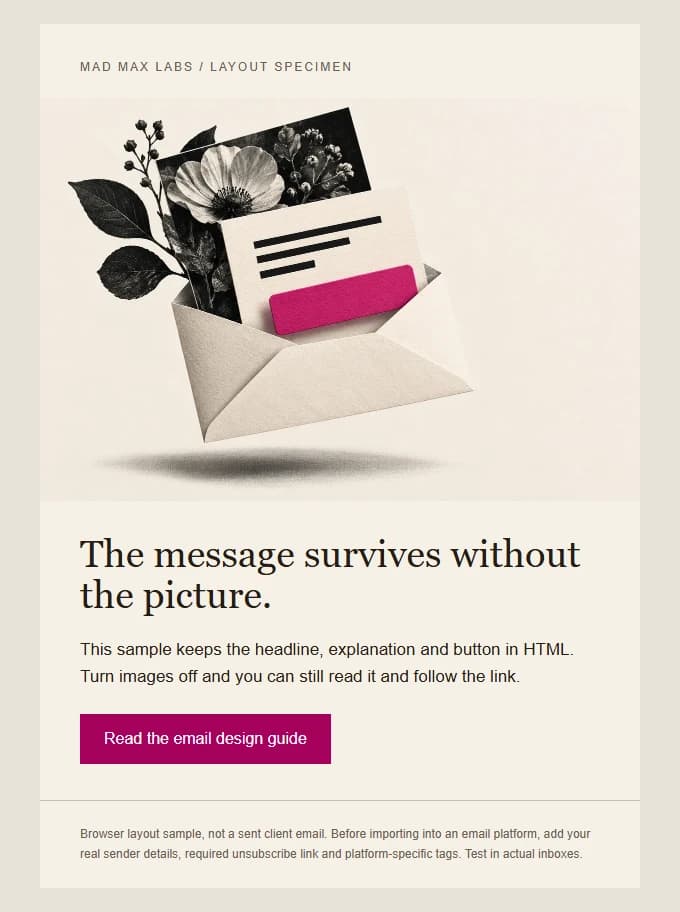
The phone view is the same file at 390 px. Under it, the images-off view deliberately substitutes an alt-text placeholder for the picture. The headline, explanation and link stay in the document. That is the test: could a person still understand the message and take its next step?
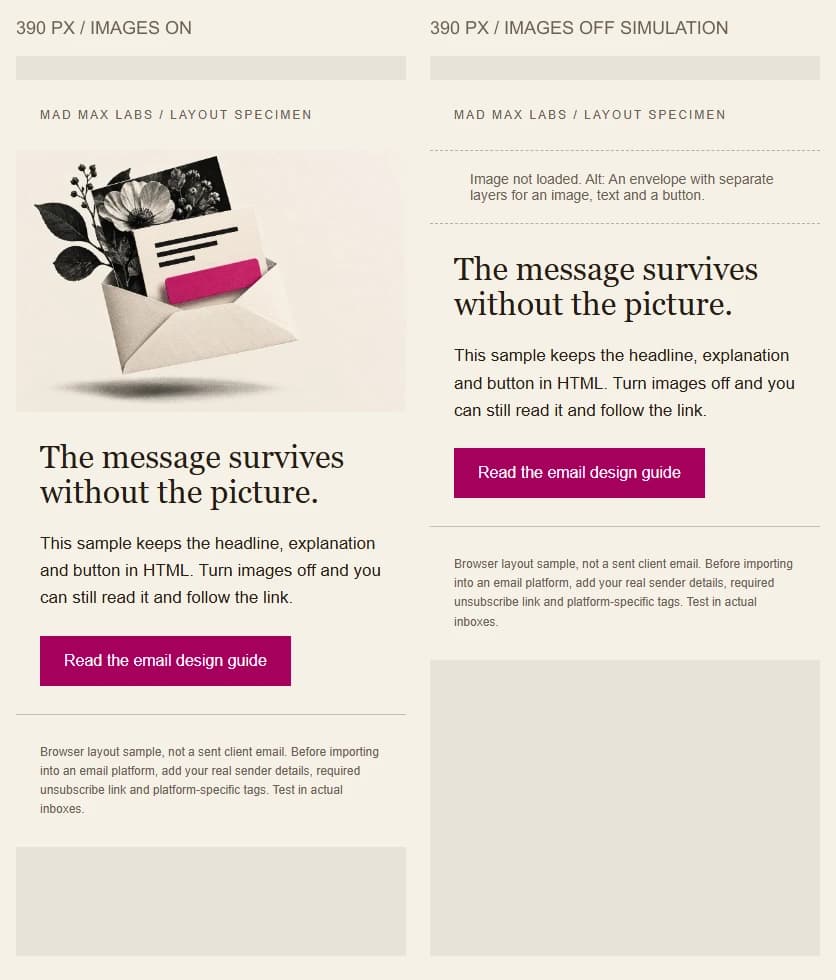
Open the HTML specimen to inspect or save it. It is a layout sample, not a campaign ready to send: add the sender details, unsubscribe link and platform tags for your account, then test it in actual inboxes. The sample's artwork is conceptual; a product campaign needs the real product references described next.
What should the image model make, and what should it never make?
Our rule for generated images is scene, not product. The model paints the light, the surface, the props and the colour. The product comes from a real photo passed in as the reference image.
We used Higgsfield's product-in-scene mode this way, so the printed label came through intact and a customer receives exactly the thing in the picture.
The other rules, each learned on client work:
- Count the products. Say exactly how many should appear and that none may be added. Models like to slip in a phantom extra one.
- Check the corners. One hero candidate came back with a made-up watermark in a corner. We threw it out.
- Watch your prompt words. The image tool we used runs a safety filter over the prompt text, and some words that describe a product trip it, even inside a negative like "no X". Describe the object by shape and colour and let the reference photo carry the label.
- Match the house style. Falcon, who runs the studio with Sid, said our first hero for one transactional email "looks downright scary": dark, dusty, nothing like the brand. The redo copied the bright look of the store's existing product shots.
- Re-host everything. The links the generator hands back expire. Put the file on your own server or in Klaviyo's image library. Klaviyo's connector can upload from a URL, so the image never has to pass through the chat.
- Follow the brand guide. On one send we generated two backdrops, and the client's brand guide overruled them: no AI-generated product imagery, and real photography for the hero. The brand's own photos were already on its site, and the email shipped with those.
Klaviyo's image guide suggests 600 to 1,000 px wide, 1 MB or less, and PNG for images that contain text, which ours never do.
For a 600 px slot we export a progressive JPEG at 1,200 px, so it stays sharp on a phone's dense screen, and squeeze it to about 120 KB. Alt text describes what is in the picture, because Klaviyo itself notes that Outlook and Apple Mail readers may have images blocked.
Why are my Klaviyo email images broken in Outlook?
In the case we caught, it was WebP: a hero image linked straight from the store's own site. Desktop Outlook on Windows doesn't display the format, and caniemail.com marks every tested version from 2007 to 2019 as unsupported. The reader sees an empty box.
Klaviyo can convert a still WebP you upload into a PNG, but an image your HTML links from your store skips that step. We caught ours before the send, and the fix was boring: export a JPEG and link that.
The other cause is size. Desktop Outlook on Windows ignores a CSS width on an image (caniemail), so a 1,200 px export meant for a 600 px slot needs its width in the HTML as well. Every image tag in our templates carries it twice:
<img src="https://example.com/hero.jpg" width="600" alt="The new mug on a sunlit kitchen counter"
     style="display:block; width:600px; max-width:100%; height:auto; border:0;">
Why do Klaviyo template variables stop working?
Klaviyo's template tags, the {{ first_name }} placeholders that fill in each person's details, work like the templates in Django, a web framework, and they fail in two quiet ways.
The first is a syntax error. Klaviyo's docs say variable names can't include spaces or special characters. Some event properties start with a dollar sign anyway: Klaviyo's own examples use $value for the cart's value on a Started Checkout event.
One abandoned-checkout email in a client account used {{ event.$value }}. That one tag made the template invalid, and the email didn't send once from the day its flow went live in mid July to mid August.
Nothing alerted anyone, and the clues were quiet ones: the flow's report counted the email as skipped and never delivered, and its web view showed a syntax error. The fix is the lookup filter:
Your cart: ${{ event|lookup:'$value' }}
Hi {{ first_name|default:'there' }},
The second failure is a missing value. Klaviyo's render reference says variables without a matching value "are treated as FALSE and output nothing". So Hi {{ first_name }}, becomes "Hi ," for anyone without a name. The default filter in the second line above fixes that.
Both show up if you render the template first. Send Klaviyo's API the template with a sample person and event, and it sends back the finished email; the connector for Claude has the same tool, render_email_template. We feed it a realistic profile and order, and in our runs a broken tag came back as an error that named the problem.
Why does Klaviyo change my HTML after upload?
Because it cleans what you send. In one template, Klaviyo refused a table nested inside a link: it closed each link early and pushed the table outside, which would have sent three product cards out unclickable. We only saw it by fetching the stored template and comparing it line by line with our file. Moving the links inside the table cells fixed it.
Two more habits from the same accounts:
- Edit the original template. When you assign a template to a campaign or flow message, Klaviyo makes a copy, and updating that copy through the API returned a not-found error (404) for us. For a campaign, edit the original and assign it again. For a flow, edit the message in Klaviyo's editor; the API's Update Flow Status call changes a flow's status and leaves its emails alone.
- Read back every flow you create. We created a flow through the API and the response said draft, but a second later the stored flow was live, which means it can email anyone who triggers it. Read the status back before you treat a new flow as safe.
Is the trigger actually firing?
The biggest failure we have found didn't involve a template. One store's orders had not reached Klaviyo for years. The key Klaviyo used to read the store had been deleted, the integration still looked live, and every flow that starts with an order was waiting on events that never came.
So trust the event stream over the integration badge. In Klaviyo, go to Analytics, then Metrics, pick the metric your flow starts from (Placed Order, say), and open the Activity feed tab. If the newest event is older than your newest order, no flow that starts from it is running.
Klaviyo's WooCommerce data has a quieter gap. It covers started checkouts and placed, fulfilled, cancelled and refunded orders, but not a payment that failed. To Klaviyo, a shopper whose card was declined looks like someone who wandered off, so they get the "you left something behind" email. We wrote a Failed Order event on the store side and built a flow on it: a burst of retries enters it once in any seven days, it sends two emails at most, and the button goes to that order's own payment page instead of an empty cart.
The store stays the source of truth. Klaviyo gets a copy of each order, the same way a CRM does, and we wrote up the CRM side in our GoHighLevel and WooCommerce guide.
How do you keep these emails out of spam?
Count your senders first. At one client, three systems were sending mail as the same domain: the store's order emails, the team's mailbox, and Klaviyo. Klaviyo calls the From domain the primary domain email providers use to track your reputation, so all three share it, and each has to prove it's allowed to send.
Two terms do the proving. DKIM is a signature on each message that shows it really came from your domain. DMARC is a short public rule on your domain that tells receiving servers what to do with mail that can't prove it came from you: deliver it anyway, send it to spam, or reject it.
- Sends
- Order confirmations, shipping notes, alerts to the team
- Proves itself with
- An SMTP relay that signs every message with your domain's DKIM key, so it passes DMARC
- What we found
- It went out unsigned through the web host, failed DMARC under a quarantine policy, and landed in spam.
- Sends
- Replies, quotes, one-to-one email
- Proves itself with
- The mail provider's own DKIM setting, switched on in its admin and published in DNS
- What we found
- No DKIM switched on at all. It is the sender people forget.
- Sends
- Campaigns and flows
- Proves itself with
- A branded sending subdomain, handed to Klaviyo with NS records, plus a TXT record that proves you own the domain
- Once it is live
- Gmail stops showing “via klaviyomail.com” next to your name, and Klaviyo signs as your subdomain.
Klaviyo calls the From domain the primary domain email providers use to track your reputation, and all three senders put the same domain there. Open a test from each sender in Gmail, choose Show original, and look for dkim=pass and dmarc=pass.
Klaviyo's part is a branded sending domain: a subdomain such as send.example.com that Klaviyo sends from in your name. With its Dynamic routing option you add up to four NS records, which hand just that subdomain to Klaviyo, plus a TXT record that proves you own the domain; your website and everyday mailbox are untouched. Klaviyo says DMARC is not required to send marketing email with it, but if your domain already has a DMARC policy, the branded domain is what lets your campaigns pass.
The store's mail was the broken leg. It went out from the web host unsigned, failed DMARC and landed in spam. We moved it to an SMTP relay that signs with the store's domain, sent a test to Gmail, and read the headers with Show original: dkim=pass and dmarc=pass.
After each send, watch complaints. Google asks senders to keep the spam rate in Postmaster Tools, Google's dashboard for senders, below 0.10% and to avoid ever reaching 0.30%, and anyone sending 5,000 or more messages a day to Gmail also needs DMARC and one-click unsubscribe (Google's sender guidelines).
What should you check before a Klaviyo email sends?
Everything above, as one list you can run before each send.
- 1Render it yourself, at two widths
Screenshot the HTML in a headless browser at desktop width (680 px) and phone width (390 px) and look at both before anything is uploaded.
- 2Weigh it
HTML under Gmail's 102 KB clipping line (one of ours came in at 9.7 KB). Every image a JPEG, never WebP, about 120 KB, with its width set in the HTML as well as the style.
Why it is on the list: A WebP hero linked from the store's own server. Desktop Outlook on Windows would have shown an empty box.
- 3Upload, then read back what Klaviyo kept
Fetch the template after upload and compare it line by line with what you sent. Read back anything created through the API, too.
Why it is on the list: Klaviyo's cleaner pulled a table out of the link around it, which would have sent three product cards out unclickable. And a flow created through the API said draft in the response and was live a second later.
- 4Render it with real data
Render the template through Klaviyo's API or the connector's render tool with a realistic profile and event, and read the output. A broken tag errors; a missing value just prints nothing.
Why it is on the list: One tag that silently stopped an abandoned-checkout email for a month before we found it.
- 5Send yourself a test
Send a test to your own inbox before the real send. The email has to read completely with images off: every instruction readable, the button still working.
- 6Prove the trigger fires
Open the trigger metric's Activity feed in Klaviyo and check the date of the newest event. The integration page can say connected while nothing arrives.
Why it is on the list: A store whose orders had not reached Klaviyo for years while the integration still looked connected.
- 7Read the mail and the numbers after it lands
In Gmail, Show original should say dkim=pass and dmarc=pass. After a send, keep the spam rate under Google's 0.10% and never let it reach 0.30%.
Why it is on the list: A store whose own order emails were failing DMARC and going to customers' spam folders.
What does Claude do, and what stays with a person?
Claude Code does the typing and the checking. It writes the HTML, takes the screenshots, uploads, compares what Klaviyo stored with what it sent, renders with sample data, resizes images and reads headers. Higgsfield painted the scenes. A person chooses who gets the email, approves every image, reads the test send, and presses the button.
Klaviyo's listed connector in Claude connects one Klaviyo account at a time and needs an Owner, Admin or Manager role, so working on two client accounts in one week meant switching it over.
For several accounts Klaviyo recommends a custom connector, which it says needs a Claude Pro, Max, Team or Enterprise plan. It also takes read-only=true, which switches off every tool that can change your account. That's the setting for anyone who only needs reports, and the same rule we follow when we connect GoHighLevel to Claude: give it only what the job needs.
The owner at one of these clients has made images with his own Claude, and the story of how his team got there is in how we trained a small sales team on Claude. If you want your own team doing this work, that is our AI setup and training. If you would rather we build the flows, the store connection and the checks, that is an automation build.